3 - Gameplay
Need help with the tutorial? Join our Discord server!
This progressive tutorial is continued from part 2.
Spawning Food
- C#
- Rust
- C++
Let's start by spawning food into the map. The first thing we need to do is create a new, special reducer called the Init reducer. SpacetimeDB calls the Init reducer automatically when you first publish your module, and also after any time you run with publish --delete-data. It gives you an opportunity to initialize the state of your database before any clients connect.
Add this new reducer above our Connect reducer.
// Note the `ReducerKind.Init` parameter passed to the reducer macro.
// That indicates to SpacetimeDB that it should be called
// once upon database creation.
[Reducer(ReducerKind.Init)]
public static void Init(ReducerContext ctx)
{
    Log.Info($"Initializing...");
    ctx.Db.config.Insert(new Config { world_size = 1000 });
}
This reducer also demonstrates how to insert new rows into a table. Here we are adding a single Config row to the config table with the Insert function.
Now that we've ensured that our database always has a valid world_size let's spawn some food into the map. Add the following code to the end of the Module class.
const int FOOD_MASS_MIN = 2;
const int FOOD_MASS_MAX = 4;
const int TARGET_FOOD_COUNT = 600;

public static float MassToRadius(int mass) => MathF.Sqrt(mass);

[Reducer]
public static void SpawnFood(ReducerContext ctx)
{
    if (ctx.Db.player.Count == 0) //Are there no players yet?
    {
        return;
    }

    var worldSize = (ctx.Db.config.id.Find(0) ?? throw new Exception("Config not found")).world_size;
    var rng = ctx.Rng;
    var foodCount = ctx.Db.food.Count;
    while (foodCount < TARGET_FOOD_COUNT)
    {
        var foodMass = rng.Range(FOOD_MASS_MIN, FOOD_MASS_MAX);
        var foodRadius = MassToRadius(foodMass);
        var x = rng.Range(foodRadius, worldSize - foodRadius);
        var y = rng.Range(foodRadius, worldSize - foodRadius);
        var entity = ctx.Db.entity.Insert(new Entity
        {
            position = new DbVector2(x, y),
            mass = foodMass,
        });
        ctx.Db.food.Insert(new Food
        {
            entity_id = entity.entity_id,
        });
        foodCount++;
        Log.Info($"Spawned food! {entity.entity_id}");
    }
}

public static float Range(this Random rng, float min, float max) => rng.NextSingle() * (max - min) + min;

public static int Range(this Random rng, int min, int max) => (int)rng.NextInt64(min, max);
In this reducer, we are using the world_size we configured along with the ReducerContext's random number generator .Rng function to place 600 food uniformly randomly throughout the map. We've also chosen the mass of the food to be a random number between 2 and 4 inclusive.
We also added two helper functions so we can get a random range as either a int or a float.
Let's start by spawning food into the map. The first thing we need to do is create a new, special reducer called the init reducer. SpacetimeDB calls the init reducer automatically when you first publish your module, and also after any time you run with publish --delete-data. It gives you an opportunity to initialize the state of your database before any clients connect.
Add this new reducer above our connect reducer.
// Note the `init` parameter passed to the reducer macro.
// That indicates to SpacetimeDB that it should be called
// once upon database creation.
#[spacetimedb::reducer(init)]
pub fn init(ctx: &ReducerContext) -> Result<(), String> {
    log::info!("Initializing...");
    ctx.db.config().try_insert(Config {
        id: 0,
        world_size: 1000,
    })?;
    Ok(())
}
This reducer also demonstrates how to insert new rows into a table. Here we are adding a single Config row to the config table with the try_insert function. try_insert returns an error if inserting the row into the table would violate any constraints, like unique constraints, on the table. You can also use insert which panics on constraint violations if you know for sure that you will not violate any constraints.
Now that we've ensured that our database always has a valid world_size let's spawn some food into the map. Add the following code to the end of the file.
const FOOD_MASS_MIN: i32 = 2;
const FOOD_MASS_MAX: i32 = 4;
const TARGET_FOOD_COUNT: usize = 600;

fn mass_to_radius(mass: i32) -> f32 {
    (mass as f32).sqrt()
}

#[spacetimedb::reducer]
pub fn spawn_food(ctx: &ReducerContext) -> Result<(), String> {
    if ctx.db.player().count() == 0 {
        // Are there no logged in players? Skip food spawn.
        return Ok(());
    }

    let world_size = ctx
        .db
        .config()
        .id()
        .find(0)
        .ok_or("Config not found")?
        .world_size;

    let mut rng = ctx.rng();
    let mut food_count = ctx.db.food().count();
    while food_count < TARGET_FOOD_COUNT as u64 {
        let food_mass = rng.gen_range(FOOD_MASS_MIN..FOOD_MASS_MAX);
        let food_radius = mass_to_radius(food_mass);
        let x = rng.gen_range(food_radius..world_size as f32 - food_radius);
        let y = rng.gen_range(food_radius..world_size as f32 - food_radius);
        let entity = ctx.db.entity().try_insert(Entity {
            entity_id: 0,
            position: DbVector2 { x, y },
            mass: food_mass,
        })?;
        ctx.db.food().try_insert(Food {
            entity_id: entity.entity_id,
        })?;
        food_count += 1;
        log::info!("Spawned food! {}", entity.entity_id);
    }

    Ok(())
}
In this reducer, we are using the world_size we configured along with the ReducerContext's random number generator .rng() function to place 600 food uniformly randomly throughout the map. We've also chosen the mass of the food to be a random number between 2 and 4 inclusive.
Let's start by spawning food into the map. The first thing we need to do is create a new, special reducer called the SPACETIMEDB_INIT reducer. SpacetimeDB calls the SPACETIMEDB_INIT reducer automatically when you first publish your module, and also after any time you run with publish --delete-data. It gives you an opportunity to initialize the state of your database before any clients connect.
Add this new reducer above our connect reducer.
// Note the SPACETIMEDB_INIT macro.
// This indicates to SpacetimeDB that it should be called
// once upon database creation.
SPACETIMEDB_INIT(init, ReducerContext ctx) {
    LOG_INFO("Initializing...");
    ctx.db[config].insert(Config{0, 1000});
    return Ok();
}
This reducer also demonstrates how to insert new rows into a table. Here we are adding a single Config row to the config table with the insert function.
Now that we've ensured that our database always has a valid world_size let's spawn some food into the map. Add the following code to the end of the file.
const int32_t FOOD_MASS_MIN = 2;
const int32_t FOOD_MASS_MAX = 4;
const size_t TARGET_FOOD_COUNT = 600;

float mass_to_radius(int32_t mass) {
    return std::sqrt(static_cast<float>(mass));
}

SPACETIMEDB_REDUCER(spawn_food, ReducerContext ctx) {
    // Check if there are any players logged in
    bool has_players = false;
    for (const auto& _ : ctx.db[player]) {
        has_players = true;
        break;
    }
    if (!has_players) {
        // Are there no logged in players? Skip food spawn.
        return Ok();
    }

    auto config_opt = ctx.db[config_id].find(0);
    if (!config_opt.has_value()) {
        return Err("Config not found");
    }
    int64_t world_size = config_opt.value().world_size;

    auto& rng = ctx.rng();

    // Count current food
    uint64_t food_count = 0;
    for (const auto& _ : ctx.db[food]) {
        food_count++;
    }

    while (food_count < TARGET_FOOD_COUNT) {
        int32_t food_mass = rng.gen_range(FOOD_MASS_MIN, FOOD_MASS_MAX);
        float food_radius = mass_to_radius(food_mass);
        float x = rng.gen_range(food_radius, static_cast<float>(world_size) - food_radius);
        float y = rng.gen_range(food_radius, static_cast<float>(world_size) - food_radius);

        auto inserted_entity = ctx.db[entity].insert(Entity{0, {x, y}, food_mass});
        ctx.db[food].insert(Food{inserted_entity.entity_id});

        food_count += 1;
        LOG_INFO("Spawned food! " + std::to_string(inserted_entity.entity_id));
    }

    return Ok();
}
In this reducer, we are using the world_size we configured along with the ReducerContext's random number generator .rng() function to place 600 food uniformly randomly throughout the map. We've also chosen the mass of the food to be a random number between 2 and 4 inclusive.
Although, we've written the reducer to spawn food, no food will actually be spawned until we call the function while players are logged in. This raises the question, who should call this function and when?
We would like for this function to be called periodically to "top up" the amount of food on the map so that it never falls very far below our target amount of food. SpacetimeDB has built in functionality for exactly this. With SpacetimeDB you can schedule your module to call itself in the future or repeatedly with reducers.
- C#
- Rust
- C++
In order to schedule a reducer to be called we have to create a new table which specifies when and how a reducer should be called. Add this new table to the top of the Module class.
[Table(Accessor = "spawn_food_timer", Scheduled = nameof(SpawnFood), ScheduledAt = nameof(scheduled_at))]
public partial struct SpawnFoodTimer
{
    [PrimaryKey, AutoInc]
    public ulong scheduled_id;
    public ScheduleAt scheduled_at;
}
Note the Scheduled = nameof(SpawnFood) parameter in the table macro. This tells SpacetimeDB that the rows in this table specify a schedule for when the SpawnFood reducer should be called. Each schedule table requires a scheduled_id and a scheduled_at field so that SpacetimeDB can call your reducer, however you can also add your own fields to these rows as well.
In order to schedule a reducer to be called we have to create a new table which specifies when and how a reducer should be called. Add this new table to the top of the file, below your imports.
#[spacetimedb::table(accessor = spawn_food_timer, scheduled(spawn_food))]
pub struct SpawnFoodTimer {
    #[primary_key]
    #[auto_inc]
    scheduled_id: u64,
    scheduled_at: spacetimedb::ScheduleAt,
}
Note the scheduled(spawn_food) parameter in the table macro. This tells SpacetimeDB that the rows in this table specify a schedule for when the spawn_food reducer should be called. Each schedule table requires a scheduled_id and a scheduled_at field so that SpacetimeDB can call your reducer, however you can also add your own fields to these rows as well.
In order to schedule a reducer to be called we have to create a new table which specifies when and how a reducer should be called. Add this new table to the top of the file, below the Player table.
struct SpawnFoodTimer {
    uint64_t scheduled_id;
    ScheduleAt scheduled_at;
};
SPACETIMEDB_STRUCT(SpawnFoodTimer, scheduled_id, scheduled_at);
SPACETIMEDB_TABLE(SpawnFoodTimer, spawn_food_timer, Private);
FIELD_PrimaryKeyAutoInc(spawn_food_timer, scheduled_id);
SPACETIMEDB_SCHEDULE(spawn_food_timer, 1, spawn_food);
Note the SPACETIMEDB_SCHEDULE(spawn_food_timer, 1, spawn_food) call. This tells SpacetimeDB that the rows in this table specify a schedule for when the spawn_food reducer should be called. The second parameter 1 is the 0-based column index of the scheduled_at field. Each schedule table requires a scheduled_id and a scheduled_at field so that SpacetimeDB can call your reducer, however you can also add your own fields to these rows as well.
You can create, delete, or change a schedule by inserting, deleting, or updating rows in this table.
- C#
- Rust
- C++
You will see an error telling you that the SpawnFood reducer needs to take two arguments, but currently only takes one. This is because the schedule row must be passed in to all scheduled reducers. Modify your SpawnFood reducer to take the scheduled row as an argument.
[Reducer]
public static void SpawnFood(ReducerContext ctx, SpawnFoodTimer _timer)
{
    // ...
}
You will see an error telling you that the spawn_food reducer needs to take two arguments, but currently only takes one. This is because the schedule row must be passed in to all scheduled reducers. Modify your spawn_food reducer to take the scheduled row as an argument.
#[spacetimedb::reducer]
pub fn spawn_food(ctx: &ReducerContext, _timer: SpawnFoodTimer) -> Result<(), String> {
    // ...
}
You will see an error telling you that the spawn_food reducer needs to take two arguments, but currently only takes one. This is because the schedule row must be passed in to all scheduled reducers. Modify your spawn_food reducer to take the scheduled row as an argument.
SPACETIMEDB_REDUCER(spawn_food, ReducerContext ctx, SpawnFoodTimer _timer) {
    // ...
}
In our case we aren't interested in the data on the row, so we name the argument _timer.
- C#
- Rust
- C++
Let's modify our Init reducer to schedule our SpawnFood reducer to be called every 500 milliseconds.
[Reducer(ReducerKind.Init)]
public static void Init(ReducerContext ctx)
{
    Log.Info($"Initializing...");
    ctx.Db.config.Insert(new Config { world_size = 1000 });
    ctx.Db.spawn_food_timer.Insert(new SpawnFoodTimer
    {
        scheduled_at = new ScheduleAt.Interval(TimeSpan.FromMilliseconds(500))
    });
}You can use ScheduleAt.Interval to schedule a reducer call at an interval like we're doing here. SpacetimeDB will continue to call the reducer at this interval until you remove the row. You can also use new ScheduleAt.Time(...) to schedule a reducer once at a specific time. SpacetimeDB will remove that row automatically after the reducer has been called.
Let's modify our init reducer to schedule our spawn_food reducer to be called every 500 milliseconds.
#[spacetimedb::reducer(init)]
pub fn init(ctx: &ReducerContext) -> Result<(), String> {
    log::info!("Initializing...");
    ctx.db.config().try_insert(Config {
        id: 0,
        world_size: 1000,
    })?;
    ctx.db.spawn_food_timer().try_insert(SpawnFoodTimer {
        scheduled_id: 0,
        scheduled_at: ScheduleAt::Interval(Duration::from_millis(500).into()),
    })?;
    Ok(())
}You can use ScheduleAt::Interval to schedule a reducer call at an interval like we're doing here. SpacetimeDB will continue to call the reducer at this interval until you remove the row. You can also use ScheduleAt::Time() to specify a specific time at which to call a reducer once. SpacetimeDB will remove that row automatically after the reducer has been called.
Let's modify our SPACETIMEDB_INIT reducer to schedule our spawn_food reducer to be called every 500 milliseconds.
SPACETIMEDB_INIT(init, ReducerContext ctx) {
    LOG_INFO("Initializing...");
    ctx.db[config].insert(Config{
        0,
        1000,
    });
    ctx.db[spawn_food_timer].insert(SpawnFoodTimer{
        0,
        ScheduleAt(TimeDuration::from_millis(500)),
    });
    return Ok();
}You can use ScheduleAt(TimeDuration::from_millis(...)) to schedule a reducer call at an interval like we're doing here. SpacetimeDB will continue to call the reducer at this interval until you remove the row. You can also use ScheduleAt(Timestamp::from_millis_since_epoch(...)) to specify a specific time at which to call a reducer once. SpacetimeDB will remove that row automatically after the reducer has been called.
Logging Players In
Let's continue building out our server module by modifying it to log in a player when they connect to the database, or to create a new player if they've never connected before.
Let's add a second table to our Player struct. Modify the Player struct by adding this above the struct:
- C#
- Rust
- C++
[Table(Accessor = "logged_out_player")]#[spacetimedb::table(accessor = logged_out_player)]SPACETIMEDB_TABLE(Player, logged_out_player, Private);Your struct should now look like this:
- C#
- Rust
- C++
[Table(Accessor = "player", Public = true)]
[Table(Accessor = "logged_out_player")]
public partial struct Player
{
    [PrimaryKey]
    public Identity identity;
    [Unique, AutoInc]
    public int player_id;
    public string name;
}#[spacetimedb::table(accessor = player, public)]
#[spacetimedb::table(accessor = logged_out_player)]
#[derive(Debug, Clone)]
pub struct Player {
#[primary_key]
identity: Identity,
#[unique]
#[auto_inc]
player_id: i32,
name: String,
}struct Player {
Identity identity;
int32_t player_id;
std::string name;
};
SPACETIMEDB_STRUCT(Player, identity, player_id, name);
SPACETIMEDB_TABLE(Player, player, Public);
SPACETIMEDB_TABLE(Player, logged_out_player, Private);
FIELD_PrimaryKey(player, identity);
FIELD_UniqueAutoInc(player, player_id);
FIELD_PrimaryKey(logged_out_player, identity);
FIELD_UniqueAutoInc(logged_out_player, player_id);In C++, since we're creating two separate tables from the same struct, we need to apply the field constraints (FIELD_PrimaryKey and FIELD_UniqueAutoInc) to both player and logged_out_player independently. Each table maintains its own indexes and constraints.
This creates an additional tabled called logged_out_player whose rows share the same Player type as in the player table.
IMPORTANT! Note that this new table is not marked public. This means that it can only be accessed by the database owner (which is almost always the database creator). In order to prevent any unintended data access, all SpacetimeDB tables are private by default.
If your client isn't syncing rows from the server, check that your table is not accidentally marked private.
- C#
- Rust
- C++
Next, modify your Connect reducer and add a new Disconnect reducer below it:
[Reducer(ReducerKind.ClientConnected)]
public static void Connect(ReducerContext ctx)
{
    var player = ctx.Db.logged_out_player.identity.Find(ctx.Sender);
    if (player != null)
    {
        ctx.Db.player.Insert(player.Value);
        ctx.Db.logged_out_player.identity.Delete(player.Value.identity);
    }
    else
    {
        ctx.Db.player.Insert(new Player
        {
            identity = ctx.Sender,
            name = "",
        });
    }
}

[Reducer(ReducerKind.ClientDisconnected)]
public static void Disconnect(ReducerContext ctx)
{
    var player = ctx.Db.player.identity.Find(ctx.Sender) ?? throw new Exception("Player not found");
    ctx.Db.logged_out_player.Insert(player);
    ctx.Db.player.identity.Delete(player.identity);
}
Next, modify your connect reducer and add a new disconnect reducer below it:
#[spacetimedb::reducer(client_connected)]
pub fn connect(ctx: &ReducerContext) -> Result<(), String> {
    if let Some(player) = ctx.db.logged_out_player().identity().find(&ctx.sender()) {
        ctx.db.player().insert(player.clone());
        ctx.db
            .logged_out_player()
            .identity()
            .delete(&player.identity);
    } else {
        ctx.db.player().try_insert(Player {
            identity: ctx.sender(),
            player_id: 0,
            name: String::new(),
        })?;
    }
    Ok(())
}

#[spacetimedb::reducer(client_disconnected)]
pub fn disconnect(ctx: &ReducerContext) -> Result<(), String> {
    let player = ctx
        .db
        .player()
        .identity()
        .find(&ctx.sender())
        .ok_or("Player not found")?;
    let player_id = player.player_id;
    ctx.db.logged_out_player().insert(player);
    ctx.db.player().identity().delete(&ctx.sender());

    Ok(())
}
Next, modify your connect reducer and add a new disconnect reducer below it:
SPACETIMEDB_CLIENT_CONNECTED(connect, ReducerContext ctx) {
    // Check if this player was previously logged out
    auto logged_out_player_opt = ctx.db[logged_out_player_identity].find(ctx.sender());
    if (logged_out_player_opt.has_value()) {
        // Move player from logged_out_player to player table
        ctx.db[player].insert(logged_out_player_opt.value());
        ctx.db[logged_out_player_identity].delete_by_key(logged_out_player_opt.value().identity);
    } else {
        // New player - create and insert into player table
        ctx.db[player].insert(Player{ctx.sender(), 0, ""});
    }
    return Ok();
}

SPACETIMEDB_CLIENT_DISCONNECTED(disconnect, ReducerContext ctx) {
    // Find the player in the player table
    auto player_opt = ctx.db[player_identity].find(ctx.sender());
    if (!player_opt.has_value()) {
        return Err("Player not found");
    }

    Player player = player_opt.value();

    // Move player from player to logged_out_player table
    ctx.db[logged_out_player].insert(player);
    ctx.db[player_identity].delete_by_key(player.identity);

    return Ok();
}
Now when a client connects, if the player corresponding to the client is in the logged_out_player table, we will move them into the player table, thus indicating that they are logged in and connected. For any new unrecognized client connects we will create a Player and insert it into the player table.
When a player disconnects, we will transfer their player row from the player table to the logged_out_player table to indicate they're offline.
Note that we could have added a logged_in boolean to the Player type to indicate whether the player is logged in. There's nothing incorrect about that approach, however for several reasons we recommend this two table approach:
- We can iterate over all logged in players without any
ifstatements or branching - The
Playertype now uses less program memory improving cache efficiency - We can easily check whether a player is logged in, based on whether their row exists in the
playertable
This approach is more generally referred to as existence based processing and it is a common technique in data-oriented design.
Spawning Player Circles
Now that we've got our food spawning and our players set up, let's create a match and spawn player circle entities into it. The first thing we should do before spawning a player into a match is give them a name.
- C#
- Rust
- C++
Add the following to the end of the Module class.
const int START_PLAYER_MASS = 15;

[Reducer]
public static void EnterGame(ReducerContext ctx, string name)
{
    Log.Info($"Creating player with name {name}");
    var player = ctx.Db.player.identity.Find(ctx.Sender) ?? throw new Exception("Player not found");
    player.name = name;
    ctx.Db.player.identity.Update(player);
    SpawnPlayerInitialCircle(ctx, player.player_id);
}

public static Entity SpawnPlayerInitialCircle(ReducerContext ctx, int playerId)
{
    var rng = ctx.Rng;
    var worldSize = (ctx.Db.config.id.Find(0) ?? throw new Exception("Config not found")).world_size;
    var playerStartRadius = MassToRadius(START_PLAYER_MASS);
    var x = rng.Range(playerStartRadius, worldSize - playerStartRadius);
    var y = rng.Range(playerStartRadius, worldSize - playerStartRadius);
    return SpawnCircleAt(
        ctx,
        playerId,
        START_PLAYER_MASS,
        new DbVector2(x, y),
        ctx.Timestamp
    );
}

public static Entity SpawnCircleAt(ReducerContext ctx, int playerId, int mass, DbVector2 position, Timestamp timestamp)
{
    var entity = ctx.Db.entity.Insert(new Entity
    {
        position = position,
        mass = mass,
    });

    ctx.Db.circle.Insert(new Circle
    {
        entity_id = entity.entity_id,
        player_id = playerId,
        direction = new DbVector2(0, 1),
        speed = 0f,
        last_split_time = timestamp,
    });
    return entity;
}
The EnterGame reducer takes one argument, the player's name. We can use this name to display as a label for the player in the match, by storing the name on the player's row. We are also spawning some circles for the player to control now that they are entering the game. To do this, we choose a random position within the bounds of the arena and create a new entity and corresponding circle row.
Let's also modify our Disconnect reducer to remove the circles from the arena when the player disconnects from the database server.
[Reducer(ReducerKind.ClientDisconnected)]
public static void Disconnect(ReducerContext ctx)
{
    var player = ctx.Db.player.identity.Find(ctx.Sender) ?? throw new Exception("Player not found");
    // Remove any circles from the arena
    foreach (var circle in ctx.Db.circle.player_id.Filter(player.player_id))
    {
        var entity = ctx.Db.entity.entity_id.Find(circle.entity_id) ?? throw new Exception("Could not find circle");
        ctx.Db.entity.entity_id.Delete(entity.entity_id);
        ctx.Db.circle.entity_id.Delete(entity.entity_id);
    }
    ctx.Db.logged_out_player.Insert(player);
    ctx.Db.player.identity.Delete(player.identity);
}
Add the following to the bottom of your file.
const START_PLAYER_MASS: i32 = 15;

#[spacetimedb::reducer]
pub fn enter_game(ctx: &ReducerContext, name: String) -> Result<(), String> {
    log::info!("Creating player with name {}", name);
    let mut player: Player = ctx.db.player().identity().find(ctx.sender()).ok_or("")?;
    let player_id = player.player_id;
    player.name = name;
    ctx.db.player().identity().update(player);
    spawn_player_initial_circle(ctx, player_id)?;

    Ok(())
}

fn spawn_player_initial_circle(ctx: &ReducerContext, player_id: i32) -> Result<Entity, String> {
    let mut rng = ctx.rng();
    let world_size = ctx
        .db
        .config()
        .id()
        .find(&0)
        .ok_or("Config not found")?
        .world_size;
    let player_start_radius = mass_to_radius(START_PLAYER_MASS);
    let x = rng.gen_range(player_start_radius..(world_size as f32 - player_start_radius));
    let y = rng.gen_range(player_start_radius..(world_size as f32 - player_start_radius));
    spawn_circle_at(
        ctx,
        player_id,
        START_PLAYER_MASS,
        DbVector2 { x, y },
        ctx.timestamp,
    )
}

fn spawn_circle_at(
    ctx: &ReducerContext,
    player_id: i32,
    mass: i32,
    position: DbVector2,
    timestamp: Timestamp,
) -> Result<Entity, String> {
    let entity = ctx.db.entity().try_insert(Entity {
        entity_id: 0,
        position,
        mass,
    })?;

    ctx.db.circle().try_insert(Circle {
        entity_id: entity.entity_id,
        player_id,
        direction: DbVector2 { x: 0.0, y: 1.0 },
        speed: 0.0,
        last_split_time: timestamp,
    })?;
    Ok(entity)
}
The enter_game reducer takes one argument, the player's name. We can use this name to display as a label for the player in the match, by storing the name on the player's row. We are also spawning some circles for the player to control now that they are entering the game. To do this, we choose a random position within the bounds of the arena and create a new entity and corresponding circle row.
Let's also modify our disconnect reducer to remove the circles from the arena when the player disconnects from the database server.
#[spacetimedb::reducer(client_disconnected)]
pub fn disconnect(ctx: &ReducerContext) -> Result<(), String> {
    let player = ctx
        .db
        .player()
        .identity()
        .find(&ctx.sender())
        .ok_or("Player not found")?;
    let player_id = player.player_id;
    ctx.db.logged_out_player().insert(player);
    ctx.db.player().identity().delete(&ctx.sender());

    // Remove any circles from the arena
    for circle in ctx.db.circle().player_id().filter(&player_id) {
        ctx.db.entity().entity_id().delete(&circle.entity_id);
        ctx.db.circle().entity_id().delete(&circle.entity_id);
    }

    Ok(())
}
Add the following to the bottom of your file.
const int32_t START_PLAYER_MASS = 15;

// Helper function to spawn a circle at a specific location
Entity spawn_circle_at(ReducerContext& ctx, int32_t player_id, int32_t mass, DbVector2 position, Timestamp timestamp) {
    auto inserted_entity = ctx.db[entity].insert(Entity{0, position, mass});

    ctx.db[circle].insert(Circle{
        inserted_entity.entity_id,
        player_id,
        DbVector2{0.0f, 1.0f},  // direction
        0.0f,                    // speed
        timestamp                // last_split_time
    });

    return inserted_entity;
}

// Helper function to spawn a player's initial circle
Entity spawn_player_initial_circle(ReducerContext& ctx, int32_t player_id) {
    auto config_opt = ctx.db[config_id].find(0);
    if (!config_opt.has_value()) {
        // This shouldn't happen, but handle it gracefully
        return Entity{0, {0.0f, 0.0f}, 0};
    }
    int64_t world_size = config_opt.value().world_size;

    auto& rng = ctx.rng();
    float player_start_radius = mass_to_radius(START_PLAYER_MASS);
    float x = rng.gen_range(player_start_radius, static_cast<float>(world_size) - player_start_radius);
    float y = rng.gen_range(player_start_radius, static_cast<float>(world_size) - player_start_radius);

    return spawn_circle_at(ctx, player_id, START_PLAYER_MASS, DbVector2{x, y}, ctx.timestamp);
}

SPACETIMEDB_REDUCER(enter_game, ReducerContext ctx, std::string name) {
    LOG_INFO("Creating player with name " + name);

    // Find the player
    auto player_opt = ctx.db[player_identity].find(ctx.sender());
    if (!player_opt.has_value()) {
        return Err("Player not found");
    }

    // Update the player's name
    Player updated_player = player_opt.value();
    int32_t player_id = updated_player.player_id;
    updated_player.name = name;
    ctx.db[player_identity].update(updated_player);

    // Spawn initial circle for the player
    spawn_player_initial_circle(ctx, player_id);

    return Ok();
}
The enter_game reducer takes one argument, the player's name. We can use this name to display as a label for the player in the match, by storing the name on the player's row. We are also spawning some circles for the player to control now that they are entering the game. To do this, we choose a random position within the bounds of the arena and create a new entity and corresponding circle row.
Let's also modify our disconnect reducer to remove the circles from the arena when the player disconnects from the database server.
SPACETIMEDB_CLIENT_DISCONNECTED(disconnect, ReducerContext ctx) {
    // Find the player in the player table
    auto player_opt = ctx.db[player_identity].find(ctx.sender());
    if (!player_opt.has_value()) {
        return Err("Player not found");
    }

    Player player = player_opt.value();
    int32_t player_id = player.player_id;

    // Move player from player to logged_out_player table
    ctx.db[logged_out_player].insert(player);
    ctx.db[player_identity].delete_by_key(player.identity);

    // Remove any circles from the arena
    for (const Circle& circle : ctx.db[circle_player_id]) {
        if (circle.player_id == player_id) {
            ctx.db[entity_entity_id].delete_by_key(circle.entity_id);
            ctx.db[circle_entity_id].delete_by_key(circle.entity_id);
        }
    }

    return Ok();
}
Finally, publish the new module to SpacetimeDB with this command:
spacetime publish --server local blackholio --delete-dataDeleting the data is optional in this case, but in case you've been messing around with the module we can just start fresh.
Creating the Arena
Now that we've set up our server logic to spawn food and players, let's continue developing our Godot client to display what we have so far.
Start by adding the SetupArena method to your GameManager class:
private void SetupArena(float worldSize)
{
    var polygon = new[]
    {
        new Vector2(0, 0),
        new Vector2(worldSize, 0),
        new Vector2(worldSize, worldSize),
        new Vector2(0, worldSize),
    };
    var background = new Polygon2D
    {
        Name = "Background",
        Color = BackgroundColor,
        Position = Vector2.Zero,
        Polygon = polygon
    };
    background.AddChild(new Polygon2D
    {
        Name = "Border",
        Color = BorderColor,
        Position = Vector2.Zero,
        InvertEnabled = true,
        InvertBorder = BorderThickness,
        Polygon = polygon
    });
    AddChild(background);
}
In your HandleSubscriptionApplied let's now call SetupArena method. Modify your HandleSubscriptionApplied method as in the below.
private void HandleSubscriptionApplied(SubscriptionEventContext ctx)
{
    GD.Print("Subscription applied!");
    OnSubscriptionApplied?.Invoke();

    // Once we have the initial subscription sync'd to the client cache
    // Get the world size from the config table and set up the arena
    var worldSize = Conn.Db.Config.Id.Find(0).WorldSize;
    SetupArena(worldSize);
}
The OnApplied callback will be called after the server synchronizes the initial state of your tables with your client. Once the sync has happened, we can look up the world size from the config table and use it to set up our arena.
In the Scene dock, in Godot, select the Main node with the GameManager script attached to it and set your background color, border thickness and border color to your preference.
Instantiating Nodes
Now that we have our arena all set up, we need to take the row data that SpacetimeDB syncs with our client and use it to create and draw nodes on the screen.
Let's start by making some controller scripts for each of the nodes we'd like to have in our scene. In the FileSystem dock, right-click and select New Script. Select C# and name the new script PlayerController.cs. Repeat that same process for CircleController.cs and FoodController.cs. We'll modify the contents of these files later.
Circle2D
To render both Circle and Food entities we need a way to draw circles on the screen. Right-click in the FileSystem dock, and create a new Circle2D C# script:
using Godot;

public abstract partial class Circle2D : Node2D
{
    private float _radius = 10.0f;
    [Export]
    public float Radius
    {
        get => _radius;
        set
        {
            if (Mathf.IsEqualApprox(_radius, value)) return;

            _radius = value;
            QueueRedraw();
        }
    }

    private Color _color = Colors.Brown;
    [Export]
    public Color Color
    {
        get => _color;
        set
        {
            if (_color == value) return;

            _color = value;
            QueueRedraw();
        }
    }

    public override void _Draw() => DrawCircle(Vector2.Zero, Radius, Color);
}
EntityController
Let's also create an EntityController script which will serve as a base class for both our CircleController and FoodController classes since both Circles and Food are entities.
Create a new C# script called EntityController.cs and replace its contents with:
using Godot;
using SpacetimeDB.Types;

public abstract partial class EntityController : Circle2D
{
	private const float LerpDurationSec = 0.1f;

	public int EntityId { get; private set; }

	private float LerpTime { get; set; }
	private Vector2 LerpStartPosition { get; set; }
	private Vector2 TargetPosition { get; set; }
	private float TargetRadius { get; set; }

	protected EntityController(int entityId, Color color)
	{
		EntityId = entityId;
		Color = color;

		var entity = GameManager.Conn.Db.Entity.EntityId.Find(entityId);
		var position = (Vector2)entity.Position;
		LerpStartPosition = position;
		TargetPosition = position;
		GlobalPosition = position;
		Radius = 0;
		TargetRadius = MassToRadius(entity.Mass);
	}

	public void OnEntityUpdated(Entity newRow)
	{
		LerpTime = 0.0f;
		LerpStartPosition = GlobalPosition;
		TargetPosition = (Vector2)newRow.Position;
		TargetRadius = MassToRadius(newRow.Mass);
	}

	public virtual void OnDelete() => QueueFree();

	public override void _Process(double delta)
	{
		var frameDelta = (float)delta;
		LerpTime = Mathf.Min(LerpTime + frameDelta, LerpDurationSec);
		GlobalPosition = LerpStartPosition.Lerp(TargetPosition, LerpTime / LerpDurationSec);
		Radius = Mathf.Lerp(Radius, TargetRadius, frameDelta * 8.0f);
	}

	private static float MassToRadius(int mass) => Mathf.Sqrt(mass);
}
The EntityController script inherits from Circle2D and it just provides some helper functions and basic functionality to manage and update our client-side entities based on server-side updates.
One notable feature is that we linearly interpolate (lerp) between the position where the server says the entity is, and where we actually draw it. This is a common technique which provides for smoother movement.
If you're interested in learning more checkout this demo from Gabriel Gambetta.
At this point you'll have a compilation error because we can't yet convert from SpacetimeDB.Types.DbVector2 to Godot.Vector2. To fix this, let's also create a new Extensions.cs script and replace the contents with:
using Godot;

namespace SpacetimeDB.Types
{
    public partial class DbVector2
    {
        public static implicit operator Vector2(DbVector2 vec) => new(vec.X, vec.Y);
        public static implicit operator DbVector2(Vector2 vec) => new(vec.X, vec.Y);
    }
}
This just allows us to implicitly convert between our DbVector2 type and the Godot Vector2 type.
CircleController
Now open the CircleController script and modify the contents of the CircleController script to be:
using Godot;
using SpacetimeDB.Types;

public partial class CircleController : EntityController
{
	private static readonly Color[] ColorPalette =
	[
		//Yellow
		new(175 / 255.0f, 159 / 255.0f, 49 / 255.0f),
		new(175 / 255.0f, 116 / 255.0f, 49 / 255.0f),
		//Purple
		new(112 / 255.0f, 47 / 255.0f, 252 / 255.0f),
		new(51 / 255.0f, 91 / 255.0f, 252 / 255.0f),
		//Red
		new(176 / 255.0f, 54 / 255.0f, 54 / 255.0f),
		new(176 / 255.0f, 109 / 255.0f, 54 / 255.0f),
		new(141 / 255.0f, 43 / 255.0f, 99 / 255.0f),
		//Blue
		new(2 / 255.0f, 188 / 255.0f, 250 / 255.0f),
		new(7 / 255.0f, 50 / 255.0f, 251 / 255.0f),
		new(2 / 255.0f, 28 / 255.0f, 146 / 255.0f)
	];

	private static CanvasLayer _labelLayer;
	private static CanvasLayer LabelLayer
	{
		get
		{
			if (_labelLayer == null)
			{

				if (Engine.GetMainLoop() is not SceneTree sceneTree) return null;
				var root = sceneTree.Root;
				if (root == null) return null;
				_labelLayer = new CanvasLayer { Name = "CircleLabelLayer" };
				root.AddChild(_labelLayer);
			}
			return _labelLayer;
		}
	}
	private static Control _labelRoot;
	private static Control LabelRoot
	{
		get
		{
			if (_labelRoot == null)
			{
				_labelRoot = new Control
				{
					Name = "CircleLabelRoot",
					MouseFilter = Control.MouseFilterEnum.Ignore
				};
				_labelRoot.SetAnchorsPreset(Control.LayoutPreset.FullRect);

				LabelLayer.AddChild(_labelRoot);
			}
			return _labelRoot;
		}
	}

	private Label _label;
	private Label Label
	{
		get
		{
			if (_label == null)
			{
				_label = new Label
				{
					Name = $"{Name}_Label",
					TopLevel = false,
					MouseFilter = Control.MouseFilterEnum.Ignore
				};
				LabelRoot.AddChild(_label);
			}
			return _label;
		}
	}

	private PlayerController OwnerPlayer { get; set; }

	public CircleController(Circle circle, PlayerController ownerPlayer) : base(circle.EntityId, ColorPalette[circle.PlayerId % ColorPalette.Length])
	{
		OwnerPlayer = ownerPlayer;
		Label.Text = ownerPlayer.Username;

		ownerPlayer.OnCircleSpawned(this);
	}

	public override void _Process(double delta)
	{
		base._Process(delta);
		UpdateScreenLabelPosition();
	}

	public override void OnDelete()
	{
		base.OnDelete();

		if (IsInstanceValid(Label))
		{
			Label.QueueFree();
		}

		OwnerPlayer?.OnCircleDeleted(this);
	}

	private void UpdateScreenLabelPosition()
	{
		Label.Size = Label.GetCombinedMinimumSize();
		var screenPosition = GetGlobalTransformWithCanvas().Origin;
		var offset = new Vector2(0.0f, Radius + 8.0f);
		Label.Position = screenPosition + offset - (Label.Size / 2.0f);
	}
}
At the top, we're just defining some possible colors for our circle. We've also created a constructor which takes a Circle (same type that's in our circle table) and a PlayerController which selects a color based on the circle's player Id, as well as setting up the text to show the player's username.
To show crisp text underneath each cirlce, we lazyly create a global CanvasLayer and a Control node to have a UI context where we can add labels for each circle. In the _Process method, we call UpdateScreenLabelPosition to update the Label's position relative to the circle position and radius.
Note that the CircleController inherits from the EntityController.
FoodController
Next open the FoodController.cs file and replace the contents with:
using Godot;
using SpacetimeDB.Types;

public partial class FoodController : EntityController
{
    private static readonly Color[] ColorPalette =
    [
        new(119 / 255.0f, 252 / 255.0f, 173 / 255.0f),
        new(76 / 255.0f, 250 / 255.0f, 146 / 255.0f),
        new(35 / 255.0f, 246 / 255.0f, 120 / 255.0f),
        new(119 / 255.0f, 251 / 255.0f, 201 / 255.0f),
        new(76 / 255.0f, 249 / 255.0f, 184 / 255.0f),
        new(35 / 255.0f, 245 / 255.0f, 165 / 255.0f),
    ];

    public FoodController(Food food) : base(food.EntityId, ColorPalette[food.EntityId % ColorPalette.Length]) { }
}
This is a much simpler script that only picks a color and calls the base EntityController's constructor.
PlayerController
Open the PlayerController script and modify the contents of the PlayerController script to be:
using System.Collections.Generic;
using System.Linq;
using Godot;
using SpacetimeDB.Types;

public partial class PlayerController : Node
{
    const int SEND_UPDATES_PER_SEC = 20;
    const float SEND_UPDATES_FREQUENCY = 1f / SEND_UPDATES_PER_SEC;

    public static PlayerController Local { get; private set; }

    private int _playerId;
    private float _lastMovementSendTimestamp;
    private Vector2? _lockInputPosition;
    private readonly List<CircleController> _ownedCircles = new();

    private bool _lockInputTogglePressed;

    public string Username => GameManager.Conn.Db.Player.PlayerId.Find(_playerId).Name;
    public int NumberOfOwnedCircles => _ownedCircles.Count;
    public bool IsLocalPlayer => this == Local;

    public PlayerController(Player player)
    {
        _playerId = player.PlayerId;
        if (player.Identity == GameManager.LocalIdentity)
        {
            Local = this;
        }
    }

    public override void _ExitTree()
    {
        foreach (var circle in _ownedCircles.ToList())
        {
            if (IsInstanceValid(circle))
            {
                circle.QueueFree();
            }
        }

        _ownedCircles.Clear();
        if (Local == this)
        {
            Local = null;
        }
    }

    public void OnCircleSpawned(CircleController circle)
    {
        _ownedCircles.Add(circle);
    }

    public void OnCircleDeleted(CircleController deletedCircle)
    {
        _ownedCircles.Remove(deletedCircle);
    }

    public int TotalMass() => _ownedCircles
            .Select(circle => GameManager.Conn.Db.Entity.EntityId.Find(circle.EntityId))
            .Sum(entity => entity?.Mass ?? 0);

	public bool TryGetCenterOfMass(out Vector2 centerOfMass)
	{
		if (_ownedCircles.Count == 0)
		{
			centerOfMass = Vector2.Zero;
			return false;
		}

		var totalPos = Vector2.Zero;
		var totalMass = 0.0f;
		foreach (var circle in _ownedCircles)
		{
			var entity = GameManager.Conn.Db.Entity.EntityId.Find(circle.EntityId);
			if (entity == null) continue;

			totalPos += circle.GlobalPosition * entity.Mass;
			totalMass += entity.Mass;
		}

		if (totalMass <= 0)
		{
			centerOfMass = Vector2.Zero;
			return false;
		}

		centerOfMass = totalPos / totalMass;
		return true;
	}
}
Let's also create a new Instantiator.cs script that we can use as a factory to instanciate and update nodes when our database changes. Replace the contents of the file with:
using System.Collections.Generic;
using Godot;
using SpacetimeDB.Types;

public partial class Instantiator : Node
{
    private DbConnection _conn;
    private DbConnection Conn
    {
        get => _conn;
        set
        {
            if (value == _conn) return;

            if (_conn != null)
            {
                _conn.Db.Circle.OnInsert -= CircleOnInsert;
                _conn.Db.Entity.OnUpdate -= EntityOnUpdate;
                _conn.Db.Entity.OnDelete -= EntityOnDelete;
                _conn.Db.Food.OnInsert -= FoodOnInsert;
                _conn.Db.Player.OnInsert -= PlayerOnInsert;
                _conn.Db.Player.OnDelete -= PlayerOnDelete;
            }

            _conn = value;

            if (value != null)
            {
                value.Db.Circle.OnInsert += CircleOnInsert;
                value.Db.Entity.OnUpdate += EntityOnUpdate;
                value.Db.Entity.OnDelete += EntityOnDelete;
                value.Db.Food.OnInsert += FoodOnInsert;
                value.Db.Player.OnInsert += PlayerOnInsert;
                value.Db.Player.OnDelete += PlayerOnDelete;
            }
        }
    }

    private static Dictionary<int, EntityController> Entities { get; } = new();
    private static Dictionary<int, PlayerController> Players { get; } = new();

    public Instantiator(DbConnection conn)
    {
        Conn = conn;
    }

    public override void _ExitTree()
    {
        GD.PrintErr("Instantiator Exit Tree");
        Conn = null;
    }

    private void CircleOnInsert(EventContext context, Circle insertedValue)
    {
        var player = GetOrCreatePlayer(insertedValue.PlayerId);
        var entityController = SpawnCircle(insertedValue, player);
        Entities[insertedValue.EntityId] = entityController;
    }

    private void EntityOnUpdate(EventContext context, Entity oldEntity, Entity newEntity)
    {
        if (Entities.TryGetValue(newEntity.EntityId, out var entityController))
        {
            entityController.OnEntityUpdated(newEntity);
        }
    }

    private void EntityOnDelete(EventContext context, Entity oldEntity)
    {
        if (Entities.Remove(oldEntity.EntityId, out var entityController))
        {
            entityController.OnDelete();
        }
    }

    private void FoodOnInsert(EventContext context, Food insertedValue)
    {
        var entityController = SpawnFood(insertedValue);
        Entities[insertedValue.EntityId] = entityController;
    }

    private void PlayerOnInsert(EventContext context, Player insertedPlayer)
    {
        GetOrCreatePlayer(insertedPlayer.PlayerId);
    }

    private void PlayerOnDelete(EventContext context, Player deletedValue)
    {
        if (Players.Remove(deletedValue.PlayerId, out var playerController))
        {
            playerController.QueueFree();
        }
    }

    private PlayerController GetOrCreatePlayer(int playerId)
    {
        if (!Players.TryGetValue(playerId, out var playerController))
        {
            var player = Conn.Db.Player.PlayerId.Find(playerId);
            playerController = SpawnPlayer(player);
            Players[playerId] = playerController;
        }

        return playerController;
    }

    private CircleController SpawnCircle(Circle circle, PlayerController owner)
    {
        var entityController = new CircleController(circle, owner)
        {
            Name = $"Circle - {circle.EntityId}",
        };

        AddChild(entityController);

        return entityController;
    }

    private FoodController SpawnFood(Food food)
    {
        var entityController = new FoodController(food)
        {
            Name = $"Food - {food.EntityId}",
        };

        AddChild(entityController);

        return entityController;
    }

    private PlayerController SpawnPlayer(Player player)
    {
        var playerController = new PlayerController(player)
        {
            Name = $"Player - {player.Name}"
        };

        AddChild(playerController);

        return playerController;
    }
}
In the Instantiator's constructor, we pass down the DbConnection and we subscribe to all the relevant changes to the database that we care about. When the Instatiator is destroyed and leaves the tree, the _ExitTree method is called and we unsubscribe from database changes.
Hooking up the Data
We've now prepared our Godot project so that we can hook up the data from our tables to the Godot game objects and have them drawn on the screen.
Next lets add an Instantiator to our scene when we succesffully connect to SpacetimeDB.Modify the HandleConnect method as below.
private void HandleConnect(DbConnection conn, Identity identity, string token)
{
	GD.Print("Connected.");
	AuthToken.SaveToken(token);
	LocalIdentity = identity;

	OnConnected?.Invoke();

	AddChild(new Instantiator(conn));

	// Request all tables
	Conn.SubscriptionBuilder()
		.OnApplied(HandleSubscriptionApplied)
		.SubscribeToAllTables();
}
Camera Controller
One of the last steps is to create a camera controller to make sure the camera follows the local player around. Create a new script called CameraController.cs. Replace the contents of the file with this:
using Godot;

public partial class CameraController : Camera2D
{
	[Export]
	public float BaseVisibleRadius { get; set; } = 50.0f;

	[Export]
	public float FollowLerpSpeed { get; set; } = 8.0f;

	[Export]
	public float ZoomLerpSpeed { get; set; } = 2.0f;

	private float WorldSize { get; }

	public CameraController(float worldSize)
	{
		WorldSize = worldSize;
	}

	public override void _Process(double delta)
	{
		Vector2 targetPosition;
		if (GameManager.IsConnected() && PlayerController.Local != null && PlayerController.Local.TryGetCenterOfMass(out var centerOfMass))
		{
			targetPosition = centerOfMass;
		}
		else
		{
			var hWorldSize = WorldSize * 0.5f;
			targetPosition = new Vector2(hWorldSize, hWorldSize);
		}

		GlobalPosition = GlobalPosition.Lerp(targetPosition, (float)delta * FollowLerpSpeed);

		if (PlayerController.Local == null)
		{
			return;
		}

		var targetCameraSize = CalculateCameraSize(PlayerController.Local);
		var desiredZoom = Vector2.One * (BaseVisibleRadius / Mathf.Max(targetCameraSize, 1.0f));
		Zoom = Zoom.Lerp(desiredZoom, (float)delta * ZoomLerpSpeed);
	}

	private static float CalculateCameraSize(PlayerController player) => 10.0f
            + Mathf.Min(10.0f, player.TotalMass() / 5.0f)
			+ Mathf.Min(player.NumberOfOwnedCircles - 1, 1) * 30.0f;
}
Lastly, let's add the CameraController to our main scene when we setup the arena. Modify the SetupArena method in GameManager as follows:
private void SetupArena(float worldSize)
{
    var polygon = new[]
    {
        new Vector2(0, 0),
        new Vector2(worldSize, 0),
        new Vector2(worldSize, worldSize),
        new Vector2(0, worldSize),
    };
    var background = new Polygon2D
    {
        Name = "Background",
        Color = BackgroundColor,
        Position = Vector2.Zero,
        Polygon = polygon,
        ZIndex = -1000
    };
    background.AddChild(new Polygon2D
    {
        Name = "Border",
        Color = BorderColor,
        Position = Vector2.Zero,
        InvertEnabled = true,
        InvertBorder = BorderThickness,
        Polygon = polygon
    });
    AddChild(background);

    AddChild(new CameraController(worldSize));
}
Note that we defined a negative ZIndex to background. This is so it gets render behind all the other siblings (instantiated by the Instantiator that we added earlier).
Entering the Game
At this point, you will need to regenerate your bindings. Run the following command from the blackholio-server/spacetimedb directory.
spacetime generate --lang csharp --out-dir ../../module_bindingsThe last step is to call the enter_game reducer on the server, passing in a username for our player, which will spawn a circle for our player. For the sake of simplicity, let's call the enter_game reducer from the HandleSubscriptionApplied callback with the name "3Blave".
    private void HandleSubscriptionApplied(SubscriptionEventContext ctx)
    {
        GD.Print("Subscription applied!");
        OnSubscriptionApplied?.Invoke();

        // Once we have the initial subscription sync'd to the client cache
        // Get the world size from the config table and set up the arena
        var worldSize = Conn.Db.Config.Id.Find(0).WorldSize;
        SetupArena(worldSize);

        ctx.Reducers.EnterGame(DefaultPlayerName);
    }
Trying it out
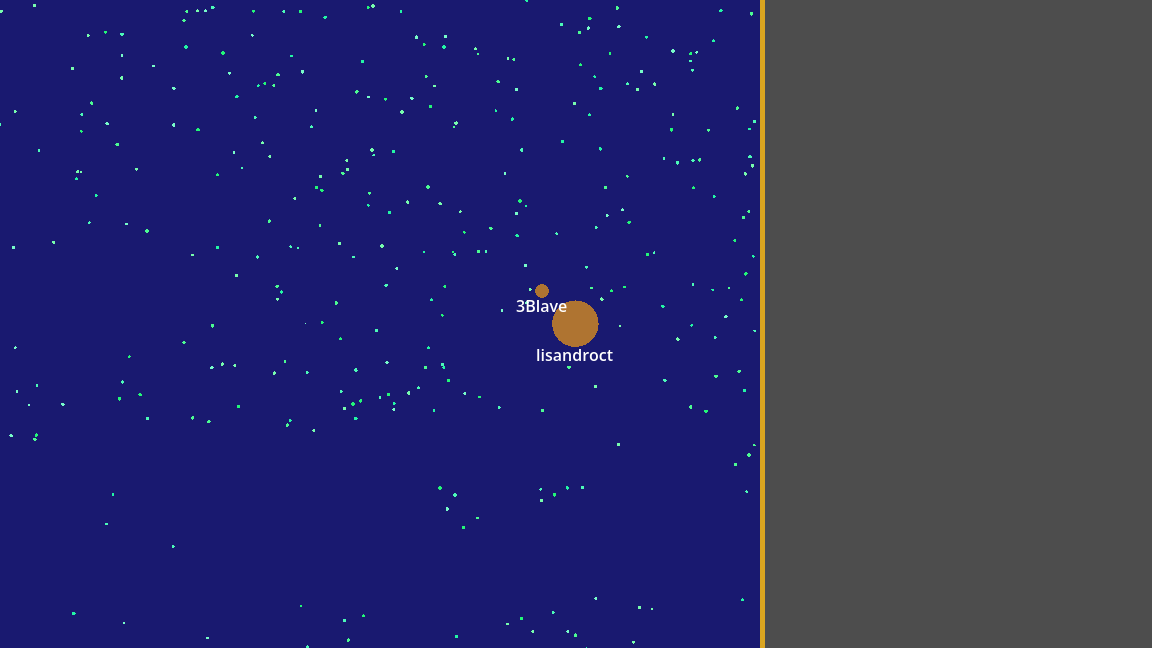
After publishing our module we can press the play button to see the fruits of our labor! You should be able to see your player's circle, with its username label, surrounded by food.
Troubleshooting
-
If you get an error when running the generate command, make sure you have an empty subfolder in your Godot project Assets folder called
module_bindings -
If you get an error in your Godot console when starting the game, double check that you have published your module and you have the correct database name specified in your
GameManager.
Next Steps
It's pretty cool to see our player in game surrounded by food, but there's a problem! We can't move yet. In the next part, we'll explore how to get your player moving and interacting with food and other objects.